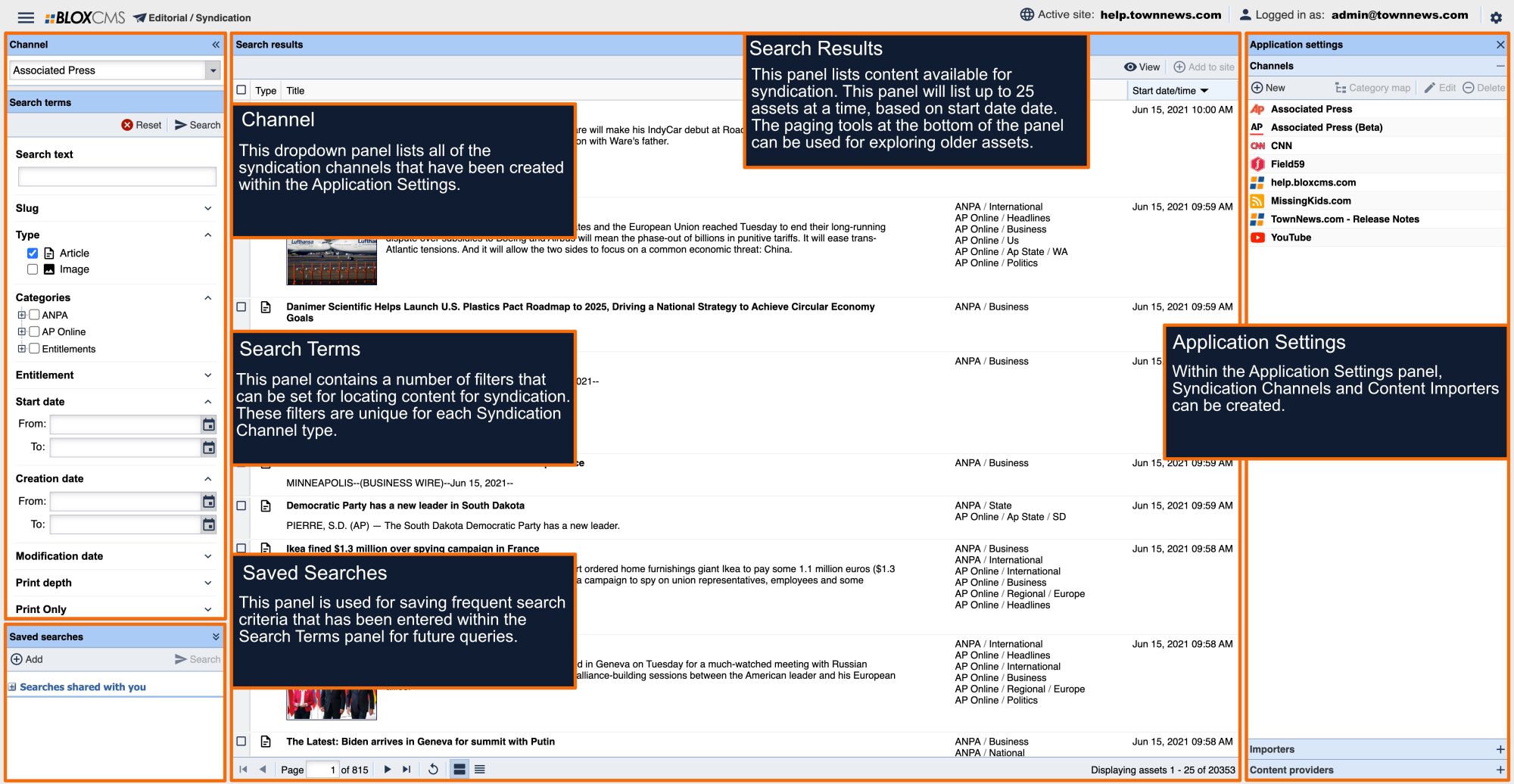
This article describes working with the BLOX Digital Content Exchange Syndication Channel.
Overview
When you first join the Content Exchange the BLOX Digital team will configure the a BLOX CMS Syndication Channel that exposes content from the BLOX Digital Content Exchange.
BLOX Digital will create a default importer for your Content Exchange channel. As new content is added to the Content Exchange, there may be additional content you wish to add to your site. Updating your importer is a great way to find and use the content that best fits your editorial needs.
How To Update an Existing Content Exchange Importer
To update your Content Exchange Importer
- from the dropdown menu in the upper left corner, select Editorial / Syndication.
- Click on the Gear icon in the top right corner. This opens the Application Settings.
- Click on Importers to expand it.
- Right-click on the Curated - TN Content Exchange Importer and select "Set As Current Search."
- In the Search Field on the left, options for Type, Categories, Flags, and Start Date will load for the TN Content Exchange Channel.
- Click on the arrow to Expand or Collapse for each option.
- Select the checkboxes for the Categories you want added, place additional search queries in the Search Text Bar, then click on Search above in the toolbar.
- Right click on the Content Exchange importer and this time select "Update From Current Search." You'll get a window asking if you want to Update Search Terms, click on Yes (No will cancel it) and then another window will Confirm they have been set.
NOTE: Don’t see a Content Exchange Channel in Editorial > Syndication? Contact your sales representative or submit a support ticket.