


How to approve or deny an Ad-Owl order
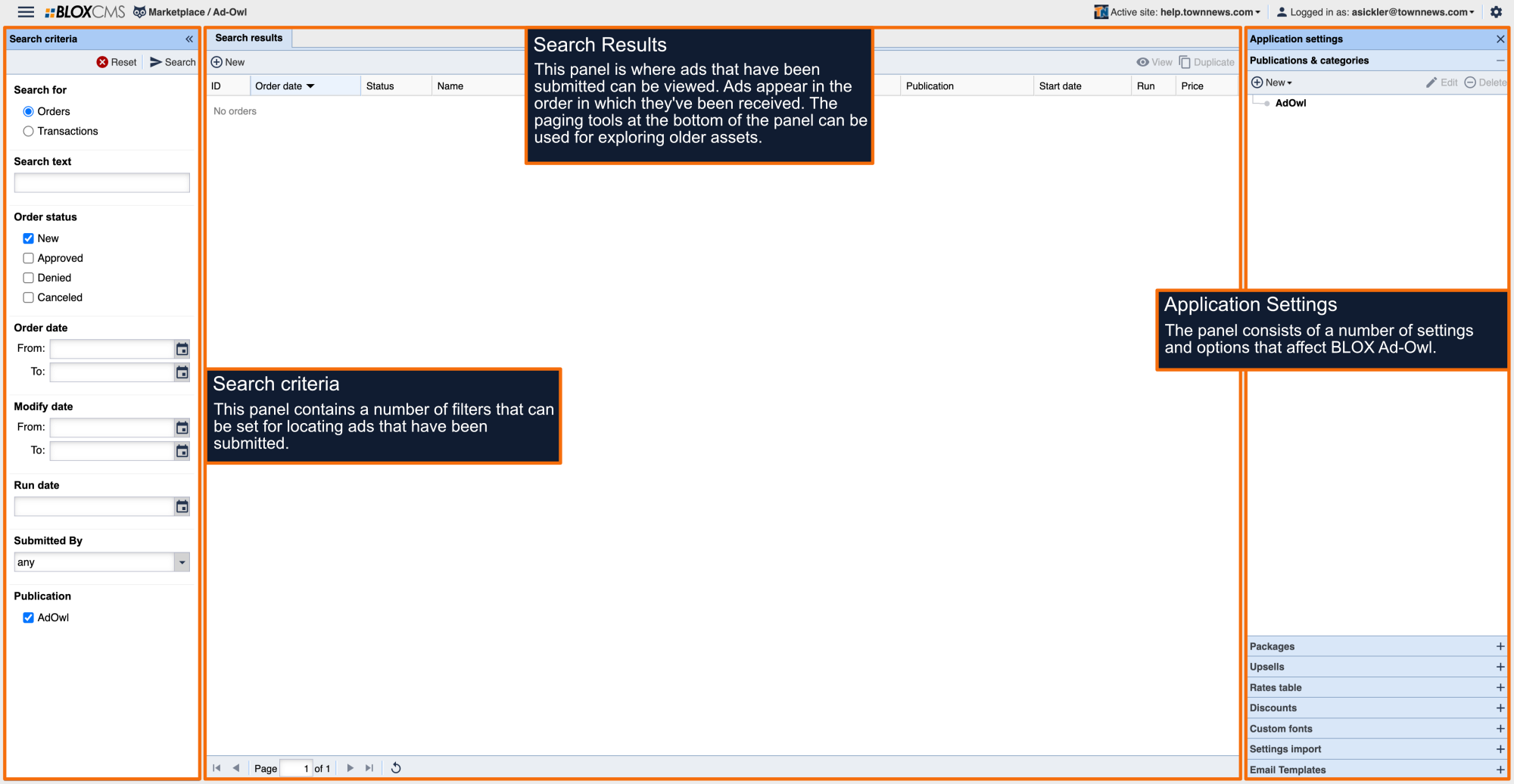
By default, ads will appear within the Search Results panel in the order of submission. New orders will be noted as "New" beneath the Status column.
To edit or transaction, highlight it and then select the respective option within the toolbar. An ad may be approved or denied using the respective toolbar option. Approved ads will immediately be created within BLOX Classifieds.
Double-clicking the ad will reveal the following panels:
General: General information about the ad.
Contact: The contact information for the user who purchased the ad.
Schedule: The dates when the ad will run.
Purchaser Comments: Comments provided by the user during the ad-creation procession.
Print Preview: View a preview of the ad text and ad fields prior to approving or denying the ad.
Viewing past actions
Viewing past actions provides a list of all the actions that have occurred with the ad.
Making the approval
When approving an order, Approve Ad Order screen will prompt for confirmation on the ad details that will be emailed to the purchaser of the ad. This information can be edited prior to finalizing the ad. Finally, select Approve ad order or Deny ad order, based on the option made in the steps noted above. Approved ads will immediately be created within BLOX Classifieds with the set run/date day/time that will include the following:
- Ad text
- Start/end dates
- Location information
- Enhanced priority numbers (Upsell option)
- Flags (Upsell option)
- Keywords (Upsell option)
- Categories (Upsell option)
- Images (Upsell option - if added to the Online Content page.)
The following will not be carried over, and may need to be added manually:
- Title: BLOX will use the first line of the ad as a title.
- Images: Either custom or stock (if added inadvertently to only the Print Ad Content page by the user.)
- Special styling (fonts, font size, bold, left/right/center justification or underlining)
How to modify an approved ad
Changes to ads (text, child assets, categories, flags, etc.) cannot be made in Ad-Owl. Any modifications to the online ad must be made in the BLOX Classifieds.
Changing ad copy could affect the price depending on how your paper charges. If the changes will affect the ad price, it may be better to cancel the ad, refund the money paid, and ask the customer to resubmit through Ad-Owl.
To edit your ad go to Marketplace > Classifieds. Search for the ad in need of editing. Select the ad, make the changes, then click Save and close. For complete information on the Classified Workspace, please click here.
If there is a print component to the ad, you will also need to manually alter the ad copy in your print publication.
How to expire an ad
Within BLOX Classifieds, open the desired ad and then modify the End date/time to to a previous date. This will mark the ad for expiration. Select the Save button to confirm your ad expiration.
Do not publish
Within BLOX Classifieds, open the desired ad and then enable the Do not publish option within the Other tab. Select the Save button to confirm your ad changes.
How to set delete date/time
Within BLOX Classifieds, open the desired ad and then modify the Delete date/time option within the Other tab. Select the Save button to confirm your ad changes.