


What are Upsells?
Ad-Owl upsells are user-selectable enhancements designed to provide additional value to an ad, while generating additional revenue on top of the standard ad package price.
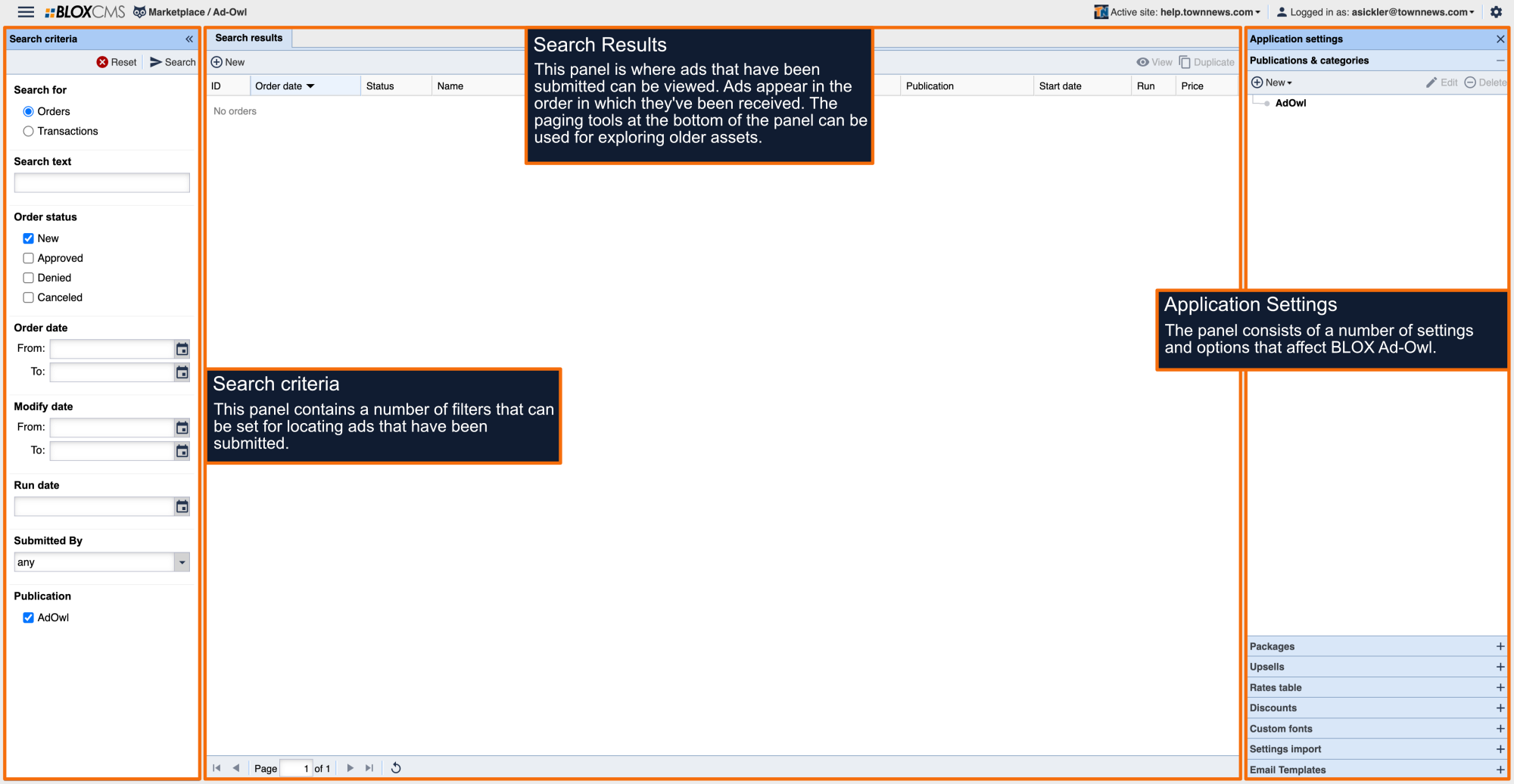
Upsells are created and configured beneath the Upsells panel within the Ad-Owl Application Settings and then independently styled or applied to a package(s).
Upsell types
BLOX Ad-Owl supports the following Upsell types:
Style Only: This upsell is used for defining style only.
Print: This upsell is used for granting users with the ability to cross-promote their ad within a print publication, in addition to online.
Stock Image: This upsell is used to provide users with a defined list of stock images to choose from to enhance their ad.
Custom Image: This upsell is used to provide users with the ability to upload and add their own photo to an ad.
Online Ad Properties: This upsell is use for customizing market, keyword, site tags, flags and other ad properties.
Additional Category: This upsell is used for granting users with the ability to cross-promote their ad within an additional classifieds category.
YouTube Video: This upsell is used to provider users with the ability to specify a YouTube video URL.
How to create an Upsell
To create a new upsell, select +New. This will populate a drop-down menu that lists the available upsell types.
An upsell consists of Configuration, Style and Packages tabs. The Configuration tab contains unique configuration options based on upsell type, whereas Style and Packages tabs are consistent across upsells and setup the same way.
Configuration
The Configuration tab is where upsell name, package and formula are defined.

Display Name: The name of the upsell. (required)
Description: The description of the upsell that is presented to users.
Formula: A formula can be added, allowing rates to be configured for the use of different packages and upsells within Ad-Owl.
Disable on Front-end: Enable this option to prevent the upsell from being available to users for selection. Disabled upsells can be viewed in Preview mode, allowing for upsell testing prior to taking the upsell live.
Style
The Style tab is where styling options can be applied to an upsell.

To create a style, select +New. This will populate an Edit Style Rule window where specifics relating to the upsell style can be defined.

Packages
The Packages tab is where packages can be applied to an upsell. To associate a package with an upsell, select the package(s) the upsell will be available in.

Style Only upsell
This upsell is used for defining style only.

Print upsell
This upsell is used for granting users with the ability to cross-promote their ad within a print publication, in addition to online.

During the ad-creation process, readers have the opportunity to change their mind and uncheck the print upsell option before submitting the ad. Additionally, if a print upsell is part of a free package, the package must be changed to conditionally free or the pricing formula will not work correctly.
Stock image upsell
This upsell is used to provide users with a defined list of stock images to choose from to enhance their ad. Images can be added by selecting +Add within the right panel.

Custom image upsell
This upsell is used to provide users with the ability to upload and add their own photo to an ad.

Image Dimension Constraints: Utilize the Minimum Width and Minimum Height fields to specify image dimension constraints.
Allow print photos online: Enable this option to allow print photos to be available online.
Online ad properties upsell
This upsell is use for customizing market, keyword, site tags, flags and other ad properties. Unique options include: markets, keywords, site tags, flags and other

Markets
Within Markets, admin users can select the market(s) that an upsell can be apart of. To add a market, select the + Add button. This will open a Select one or more markets window. Place a checkmark in front of the market(s) that you would like to include. Choose the Select button to confirm, and then the Save button within the Edit Online Ad Properties Upsell window to finalize your changes.
Keywords
Within Keywords, admins can add a keyword(s) to an Upsell. To add a keyword(s), select the + Add button. Next, add the keyword(s) that would like to be included. Select the Save button within the Edit Online Ad Properties Upsell window to finalize your changes. Keywords are given to the ad as-is when an order is placed.
Site Tags
Within the Site Tags, admins can add a website that you would like to be associated an upsell. Site tags are generally used for the purpose of copying content between sites. To add a website, select the + Add button. This will open a Select Site Tags window. Place a checkmark in front of the website(s) that you would like to include. Choose the Select Tags button to confirm, and then the Save button within the Edit Online Ad Properties Upsell window to finalize your changes.
Flags
Within Flags, admins can add a flag(s) to an Upsell. To add a Flag(s), select the + Add button. Next, add the flag(s) that would like to be included. Select the Save button within the Edit Online Ad Properties Upsell window to finalize your changes.
Other
Within Other, admins can add a Display Priority value to an Upsell. Simply add a numeric value within the Display Priority field, and then select the Save button within the Edit Online Ad Properties Upsell window to finalize your changes.
Additional category upsell
This upsell is used for granting users with the ability to cross-promote their ad within an additional classifieds category.

YouTube video upsell
This upsell is used to provider users with the ability to specify a YouTube video URL.

YouTube properties: Utilize the Width and Height fields to specify video dimension constraints.
Allow YouTube to suggest more videos: Enable this option to allow YouTube to provide video recommendations after a submitted video has finished playing.