How to find and install the BLOX Total CMS Plug-in for Adobe Photoshop®
There are at least two ways to find and install the BLOX Total CMS plug-in.
Adobe Exchange
- Visit the Adobe Exchange website
- In the menu bar at the top of the page, select Creative Cloud.
- On the left under App Type, select Plugins if it is not already selected.
- Click inside the Search area underneath App Type.
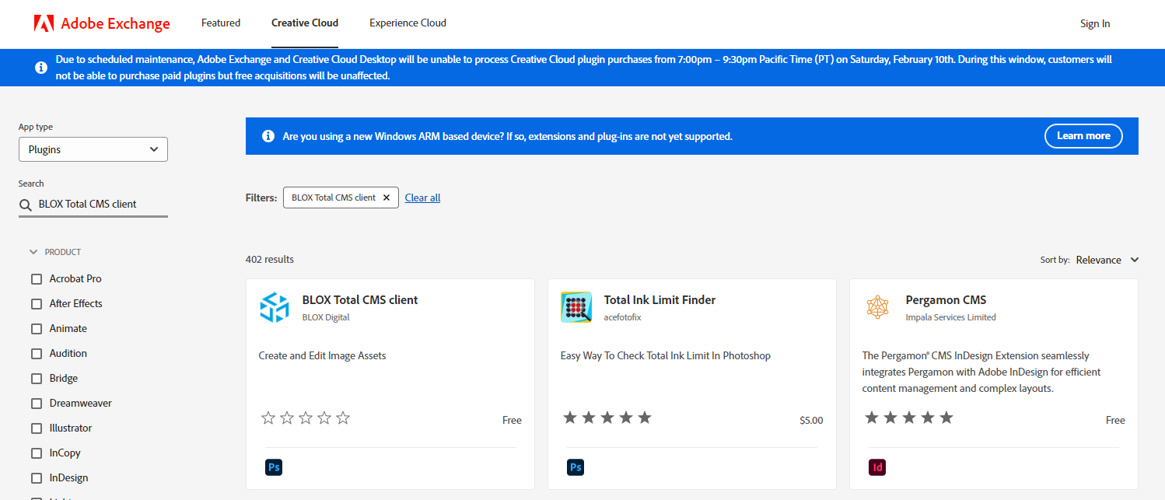
- Search for BLOX Total CMS client.
- Select BLOX Total CMS client.
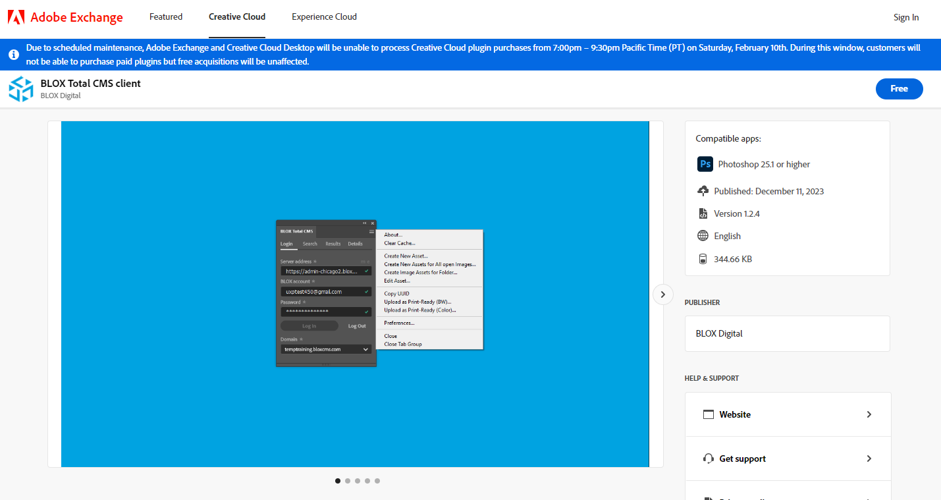
- At the top right, select free.
- If you are not signed in, you will be prompted to sign in.
- After you sign in, the word free will change to Acquired, but it still needs to be installed.
- Click Manage.
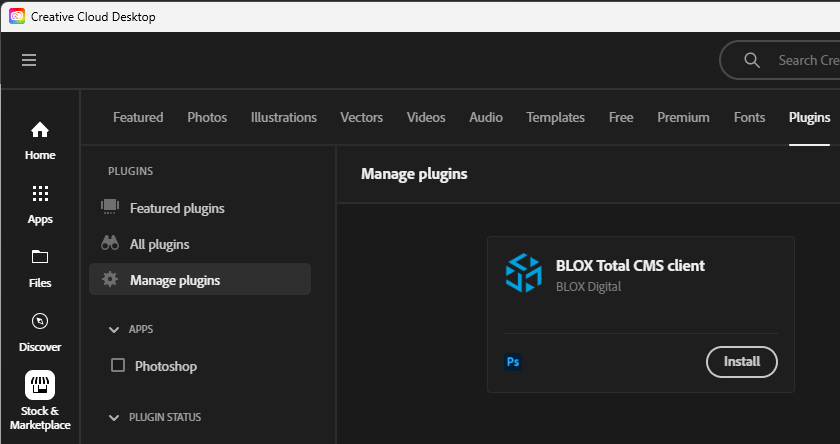
- The Creative Cloud desktop app will open.
- Click install.
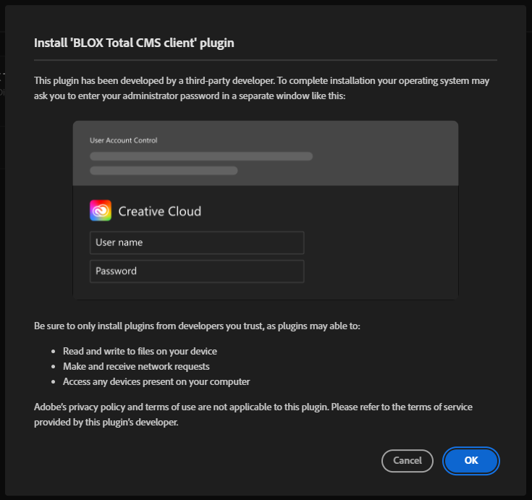
- Click OK.
- If you have an admin password, you will be prompted to enter it.
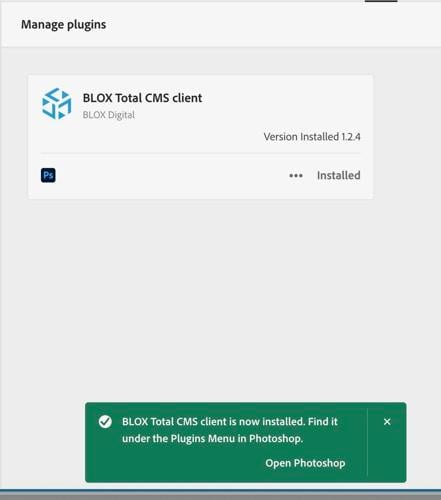
- After the plug-in is installed, you should see a confirmation message and a prompt to open Photoshop.
- To access the plugin in Photoshop, in the menu bar go to Plugins
- Click BLOX Total CMS
Use Adobe Exchange to search for the BLOX Total CMS plug-in.
Install the BLOX BLOX Total CMS plug-in for free.
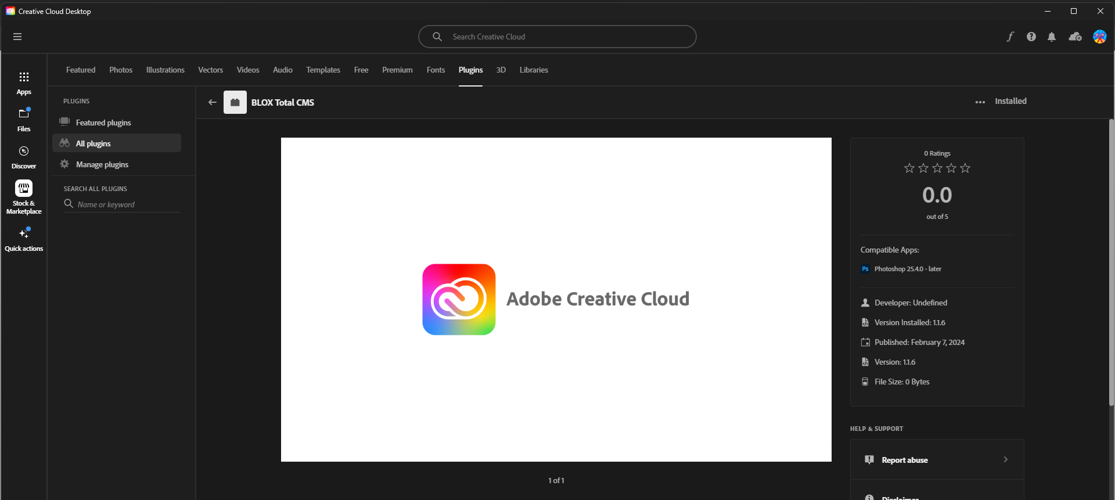
Use Adobe Creative Cloud to install the BLOX Total CMS plug-in.
The BLOX Total CMS plug-in was developed by BLOX Digital.
This is the success message that displays after the plug-in has been installed.
Adobe Photoshop
- Load Adobe Photoshop.
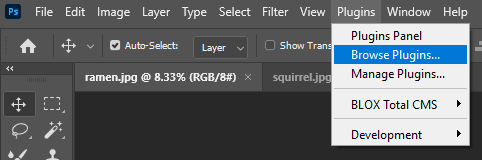
- In the menu bar, click Plugins.
- Click Browse Plugins.
- Adobe Creative Cloud will open.
- Search for BLOX Total CMS client.
- Select BLOX Total CMS client.
- Click Install.
Browse the Adobe Photoshop plugins to find the BLOX Total CMS client.
BLOX Total CMS client install