Two Types of Editing with the BLOX Total CMS client for Adobe Photoshop
Using the BLOX Total CMS client for Adobe Photoshop you can edit both image data and metadata such as the title, slug, and caption. This article outlines all the options for editing without getting into the details for using Adobe Photoshop itself.
Image Editing
After opening an image asset, by double-clicking on any image asset in either the 'Results' or 'Details' tab, you can use any Adobe Photoshop editing technique to edit the high resolution version of the BLOX image.
Providing your Adobe Photoshop based edits didn't require a change to the file format, for example by adding layers to the image, you only have to save the image to update BLOX. The simplest method to do this is to close the image and when prompted to save the image, indicate that you want to save it. Note, both JPEF and PNG files will provide a secondary prompt that you must respond to.
Image Metadata Editing
It isn't necessary to edit the pixel-based image data. You might only want to use the BLOX Total CMS client for Adobe InDesign to edit the caption, keywords, sections, or budgeting information.
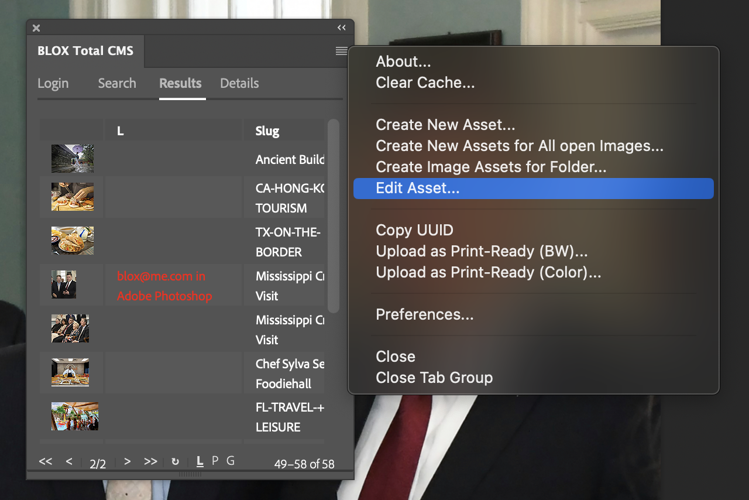
To edit this information start with an open image. Then choose 'Edit Asset...' from the panel's menu as shown below:
Use this menu to edit an open BLOX Image Asset's metadata.
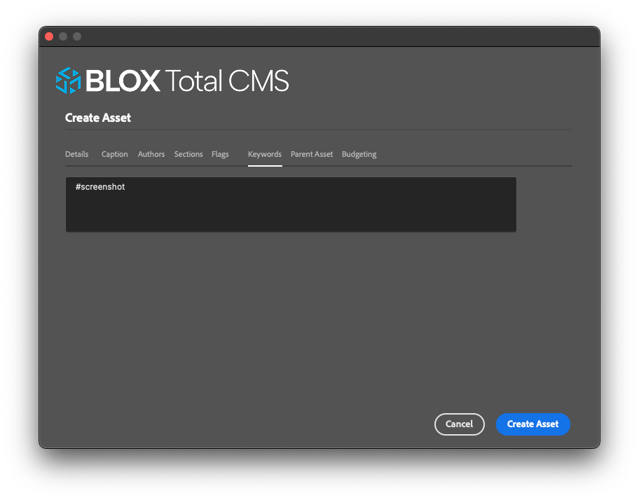
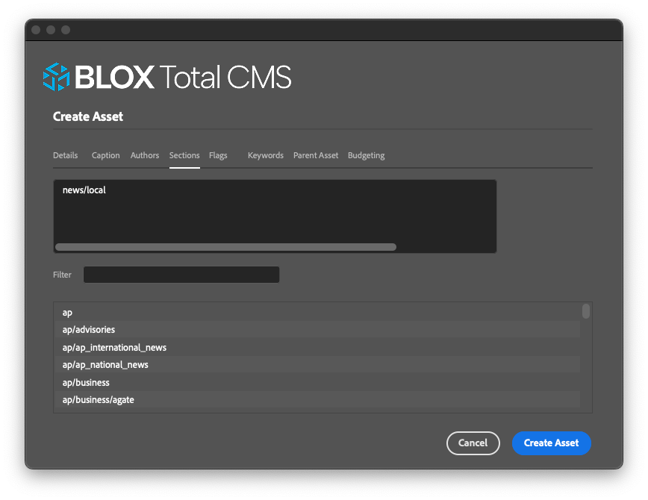
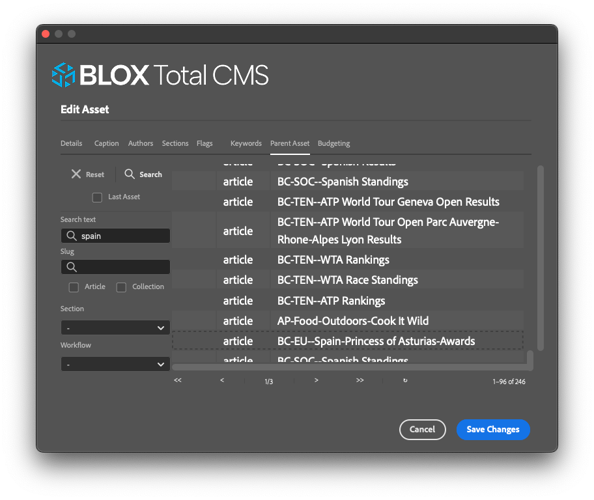
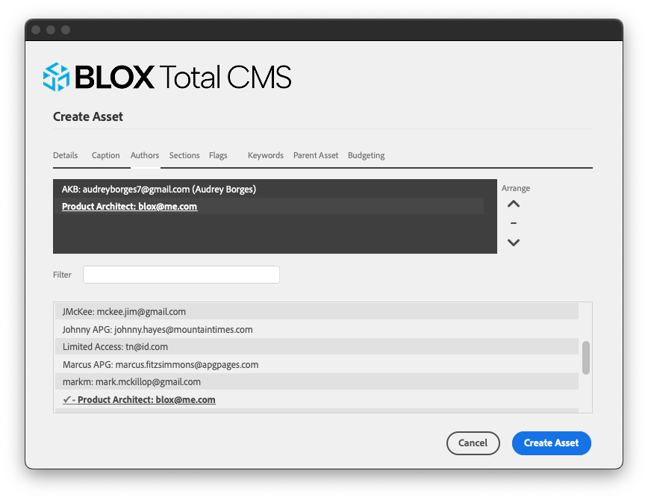
That will display a dialog with multiple tabs of different classes of image data. Some of those are displayed below:
The various data is further discussed in the following link: