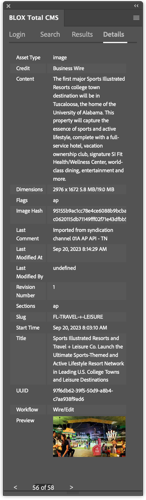
The Details tab provides a quick glance of all known details about the selected asset without opening the asset for editing.
Purpose
The Details tab allows you to view nearly all the information about an asset without actually opening the asset for editing.
The displayed information includes items that would normally not be visible anywhere else, but provides information to help troubleshoot assets and/or the BLOX Total CMS client for Adobe InDesign
Scale Text by Resizing Panel
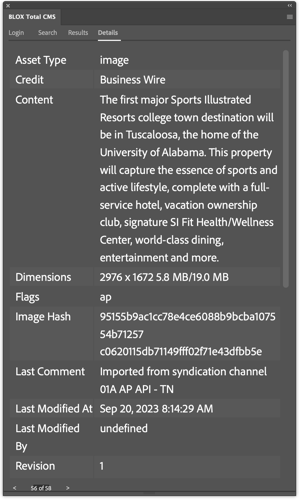
The text in the panel can be quite small. But, if you enlarge the panel by dragging its edges or corners, the text inside will scale. The second sample of the panel shows this effect.
As the Details tab is widened, the size of the text displayed will be enlarged.
Switching Assets
At the bottom of the displayed information will be '<' and '>' icons to go to the previous or next image asset in the current search Results.
Each click of those icons actually does a refresh of the search and thus you can see the number of asset change as well as the index for the current asset change as asset are added to or removed from BLOX.
Opening for Editing
Double-click anywhere within the information displayed in the Details Tab to open the asset for editing within Adobe Photoshop.