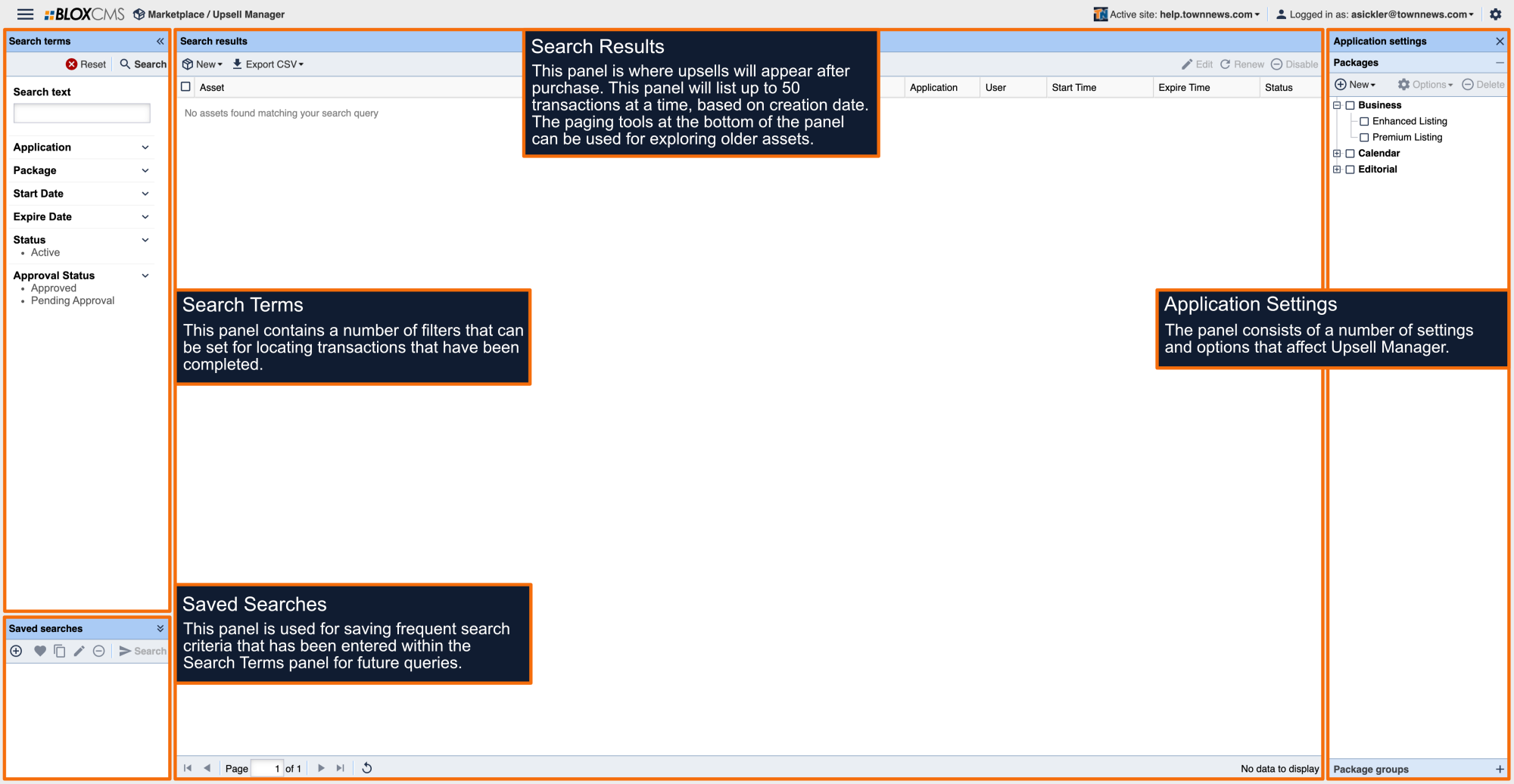
Upsells that have been submitted will be listed within the Search results panel in the order of submission. The filters within the Search Terms panel can be used to refine these results and view both approved and pending transactions.
How to approve or deny an upsell
To view an upsell, either double-click the asset or highlight the asset and then select Edit within the toolbar. Pending upsells may either be approved or denied within the Information tab by selecting the appropriate option.
The History tab lists all of the events involved with the asset, from upsell submission to approval.
The Transactions tab lists all of the specific transactions involved with the upsold asset.
To view more details about a transaction, highlight the transaction and then select View from the toolbar. Information relating to the upsell is available at a glance, including options to void the transaction and view the user profile for the contributor.
When voiding a transaction, an alert will request confirmation.
Within the Child Transactions tab, child actions relating to the primary transaction will be available, such as voided transactions.
How to Renew an upsell
To renew an upsell, highlight the asset and then select Renew within the toolbar. A window will provide a confirmation of the upsell that includes the duration of the asset. To complete the renewal, select Renew to finalize the transaction.
How to Disable an upsell
To disable an upsell altogether, highlight the asset and then select Disable within the toolbar.