Create an article
Upsells are submitted via the User Dashboard. Begin by logging in using email and password.
Next, within the User Dashboard, navigate to the Contribute menu option.
Select the asset type. Options include article, image or YouTube video. For this example, we'll select the article asset type.
Complete the required asset information and security captcha and then choose Submit.
Behind-the-scenes in BLOX Assets, user-contributed content is immediately available and can be found with the Contributed flag.
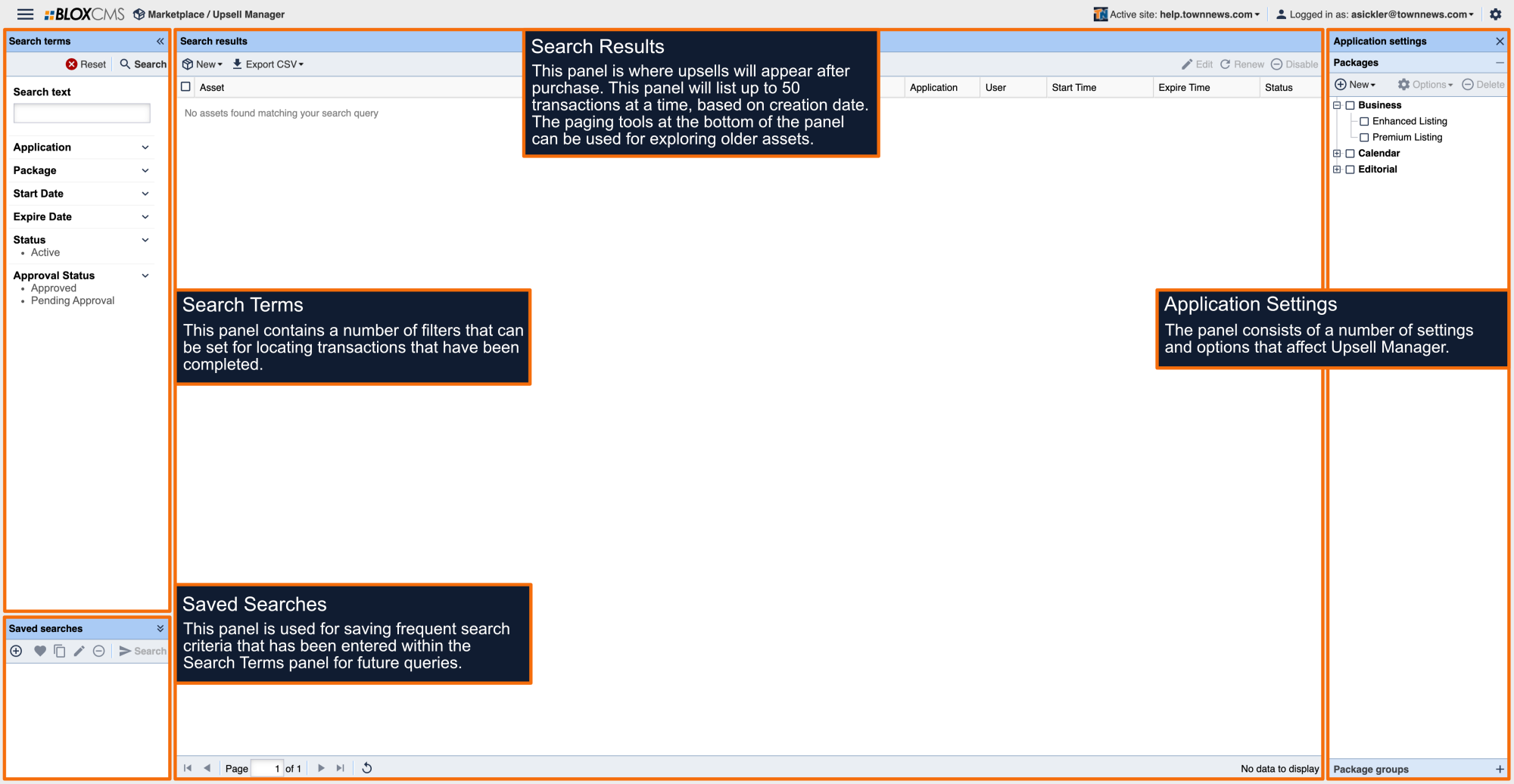
From the user's perspective, immediately following the submission, the user is greeted with a model presenting the upsell(s) available for purchase. Upsell description, pricing and other options are configured directly within BLOX Upsell Manager.
When a user decides to purchase an upsell, they'll be prompted to complete contact and billing information.
Once submitted, the user-contribution will be immediately updated to reflect any tags or keywords associated with the upsell. In this example, the Feature flag is added to the upsell Press Release.
In this example, the Feature flag is added to the upsell Press Release.