
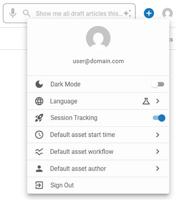
The Profile Options are available by clicking on the Profile icon in the upper right. These include options for Dark Mode, Site Preview, Language preferences, Session Tracking, and Sign Out. Above the options, the email address of the currently signed-in user is displayed.
The Single Admin View shows all of the selected admin’s information in one place including their personal, address, professional, admin, and profile information. It also displays their assigned user groups, and activity stream!
This overview describes the various areas of the Single Admin View within Audience, including the Application Navigation, Create Shortcut button, Breadcrumb Navigation, User Admin Settings, User Identify Information, User Groups, User Profile Information, and the Activity Stream.
The Single Customer View shows all of the selected contact’s information in one place including user profile, logical subscriptions, transactions, password failures, payments, payment methods, audience segments, and linked accounts!
This overview describes the various areas of the Single Customer View, including the Application Navigation, Create Shortcut button, Breadcrumb Navigation, Lifetime Value, User Admin Settings, User Profile, Audiences, Linked Accounts, Subscriptions, the Activity Stream, and Payment Methods.
The Home Interface consists of several key parts, these include the Home Dashboard and an introduction to the concept of ‘Data where you work’, Bento Navigation allowing navigation between applications, Site Selection, Application Navigation, and the Omni Search. In addition the Home Interface contains a Create Shortcut and Profile Options.
The User Preferences menu is located in the upper right-hand corner of the BLOX admin and can be accessed by selecting the down arrow following the "Logged in as" email address. Learn more about the options within.
